
User Guide
Reference documentation for the Black Diamond Solar quote builder and admin portal.
Getting Started
Overview
The system consists of two main pages:
- Quote Tool — Used by sales reps to build, price, and print solar + battery quotes for customers.
- Admin Portal — Used by administrators to manage contractors, product pricing, and user accounts.
The quote tool is public and does not require login. The admin portal requires a Supabase Auth account.
Navigation
Both pages include toolbar links to navigate between them. The admin toolbar also contains a Logout button. This guide is accessible from both pages via the Guide link in each toolbar.
Quote Tool
Toolbar
The top toolbar provides quick access to all quote actions.

The toolbar with Rep/Contractor selectors, action buttons, search, Guide link, and Admin gear icon.
| Element | Description |
|---|---|
| Rep | Select the sales representative for this quote. Saved alongside each quote. |
| Contractor | Select the contractor. This determines the rate card used for installation pricing and sets the contractor details on printed quotes. |
| Quote Type | Choose Traditional Solar (default) or Zero Bill. Zero Bill adds a premium to the customer price calculated as the greater of a flat base amount or a percentage of the price before rebates. Both values are configurable in Business Parameters. |
| New | Clear the form and start a fresh quote. |
| Save | Save the current quote to the database. Requires a customer name and postcode. |
| Generate a PDF quote document for the customer. | |
| BOM | Open the Bill of Materials view showing all components, supplier codes, quantities, and costs. |
| Search | Toggle the search bar to find previously saved quotes by name, address, or phone. |
| Admin | Navigate to the contractor admin page (gear icon). |
Customer Information
Enter the customer's contact details and installation address. These appear on the printed quote.
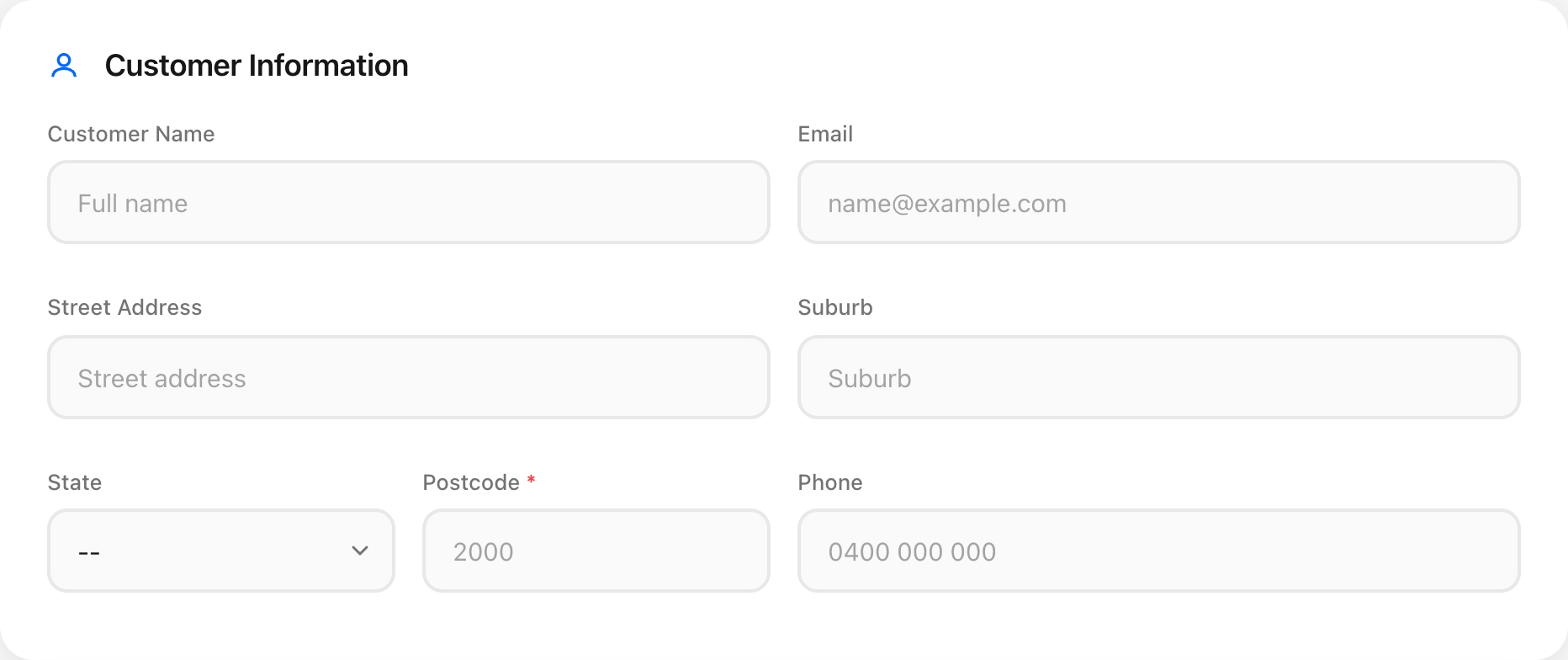
Empty customer form with placeholder text.
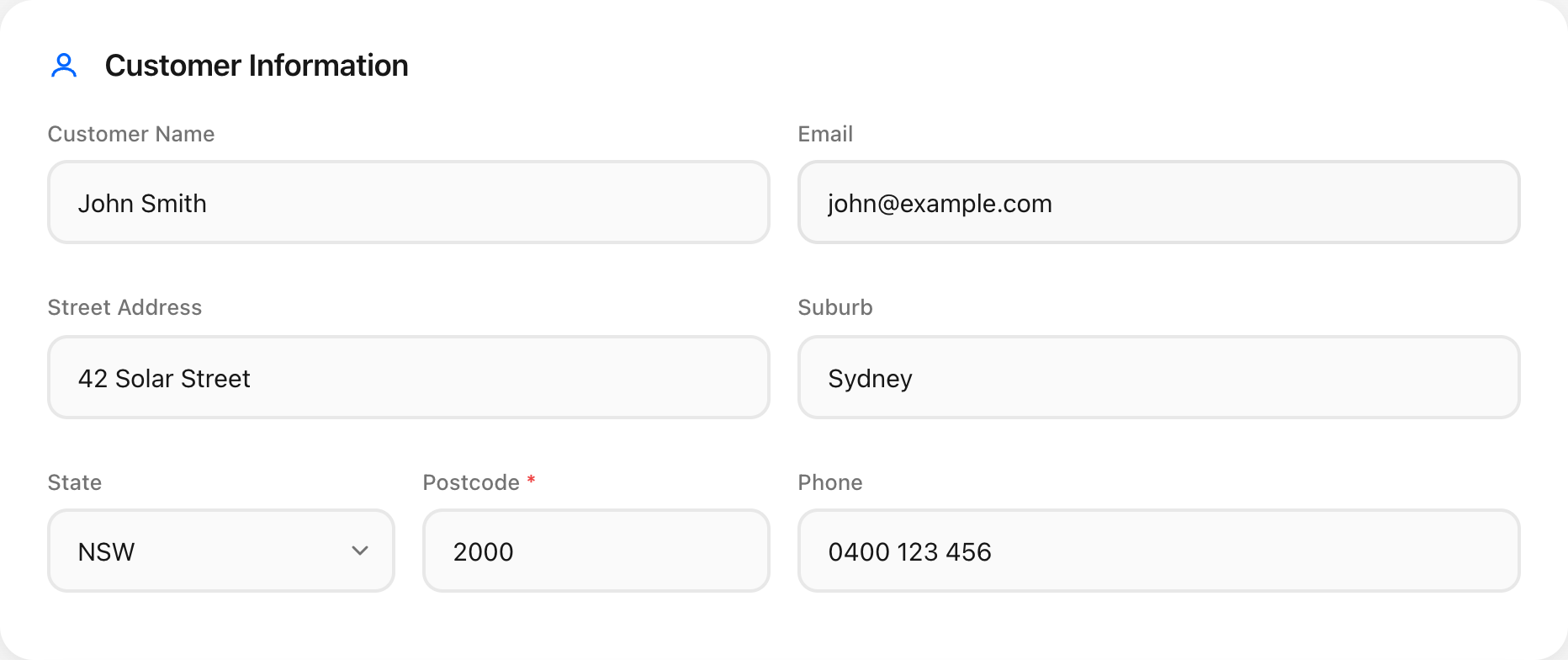
Filled customer form — postcode triggers STC zone lookup.
| Field | Description | Notes |
|---|---|---|
| Customer Name | Full name of the customer | Required for saving |
| Customer email address | — | |
| Street Address | Installation street address | Google Places autocomplete — start typing and select a suggestion to auto-fill Suburb, State, and Postcode. Manual entry still works. |
| Suburb | Installation suburb | Auto-filled by address autocomplete |
| State | Australian state/territory | Auto-filled by address autocomplete. NSW, VIC, QLD, SA, WA, TAS, NT, ACT |
| Postcode | 4-digit postcode | Required. Auto-filled by address autocomplete. Triggers automatic STC zone lookup which determines the solar rebate multiplier for this location. |
| Phone | Customer phone number | — |
Installation Details
This collapsible section captures the physical installation parameters. Click the section header to expand.
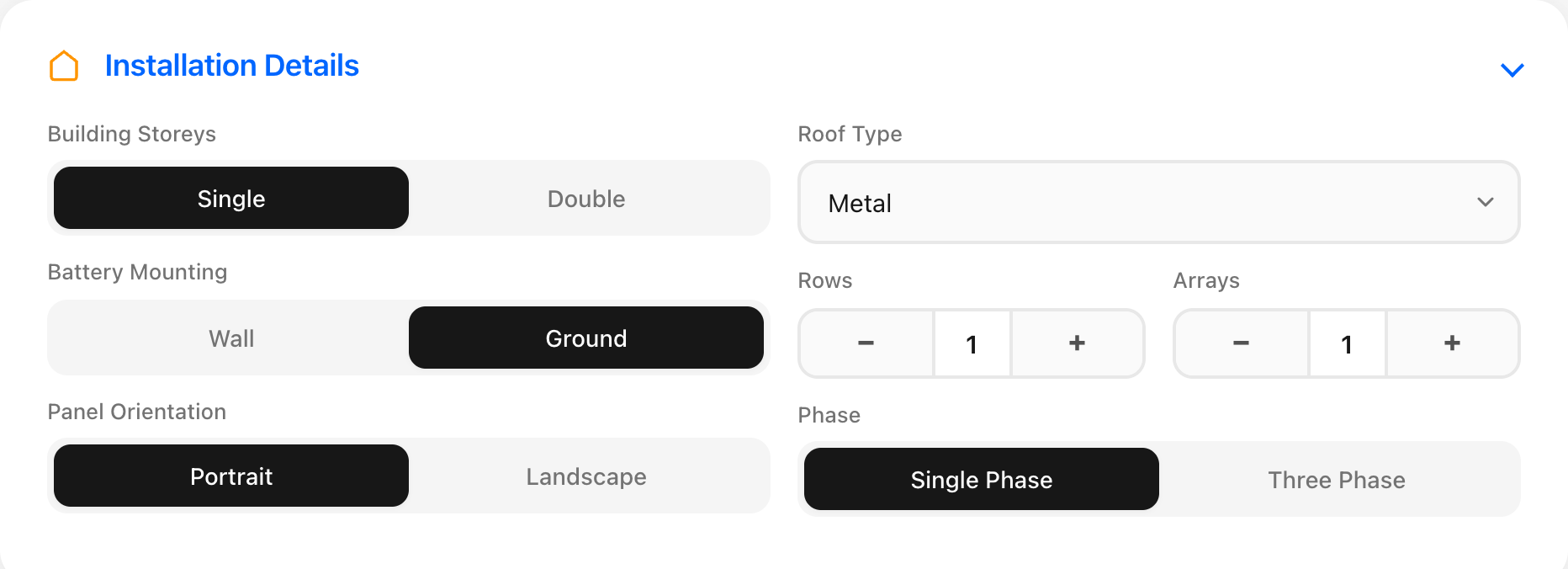
Installation details expanded — segmented controls for storeys, mounting, orientation, and phase; dropdown for roof type; steppers for rows and arrays.
| Field | Description | Values |
|---|---|---|
| Building Storeys | Number of storeys at the installation site. Affects installation pricing. | Single / Double |
| Battery Mounting | How the battery will be mounted. Wall mount may incur extra cost for some configurations. | Wall / Ground |
| Panel Orientation | How panels are oriented on the roof. Affects mounting rail calculations. | Portrait / Landscape |
| Roof Type | The roof material/style. Determines which mounting kit is used and may show conditional fields. | Metal, Tile, Concrete/Terracotta, Klip Lock, Terracotta, Flat |
| Rows | Number of panel rows on the roof. Used for mounting rail calculations. | 1–20 (stepper) |
| Arrays | Number of separate panel arrays. Each array needs its own mounting hardware. | 1–10 (stepper) |
| Phase | Electrical phase at the property. Determines which inverters are available and maximum system size. | Single Phase / Three Phase |
Conditional Fields
- Tilt Angle — Appears when roof type is Flat. Select the tilt frame angle: 10–15°, 15–30°, or 30–60°.
- Kliplock Profile — Appears when roof type is Klip Lock. Select the specific profile: Universal 406/700, Klip-Lok 700, 406, or 105.
- Wall Mount Warning — May appear when wall mounting is selected to alert about weight or compatibility constraints.
System Configuration
The core of the quote. Configure the system type, manufacturer, panels, and battery.
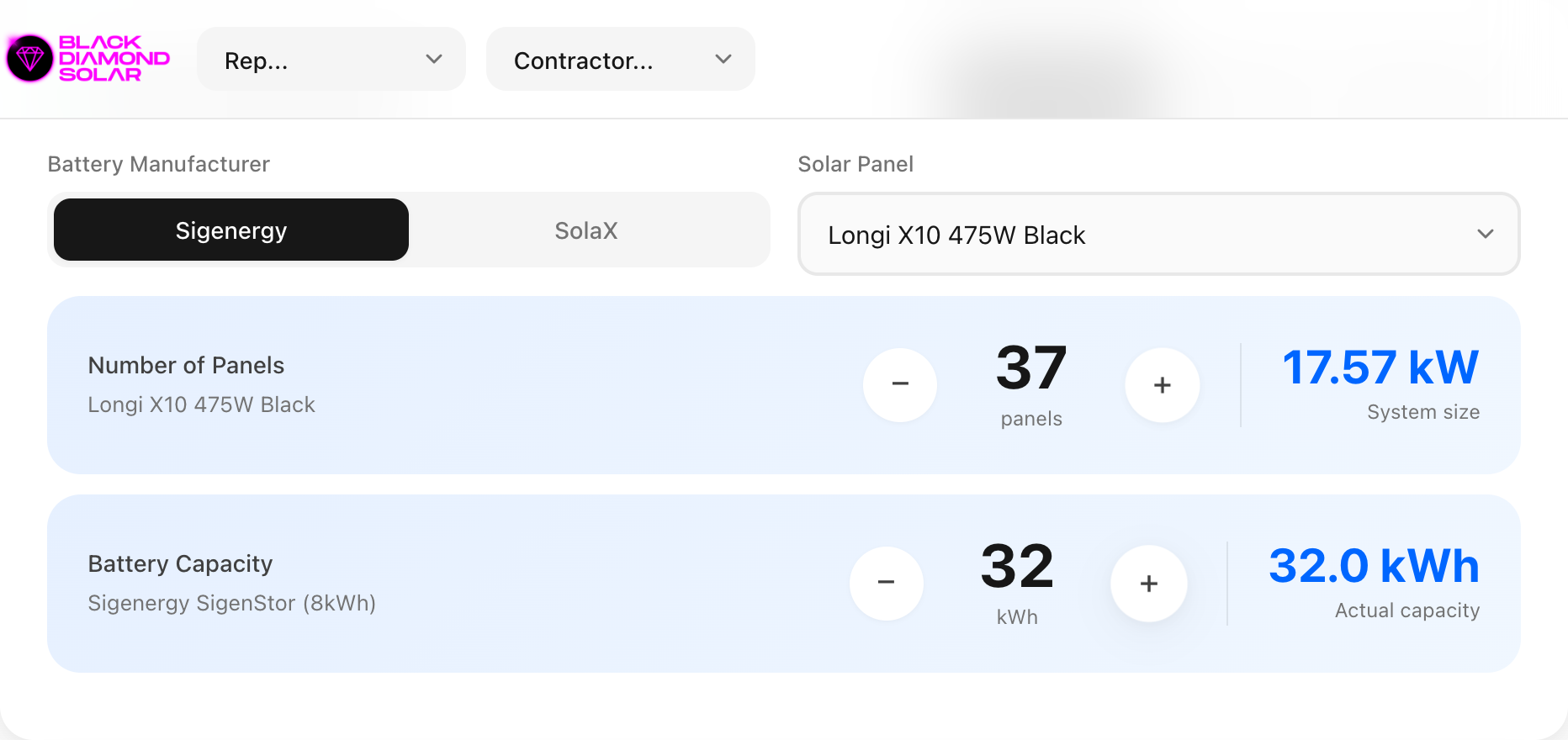
A configured system: Sigenergy manufacturer selected, 37 Longi panels (17.57 kW), and 32 kWh battery capacity.
System Type Tabs
Choose one of three configurations:
| Tab | Description |
|---|---|
| Solar + Battery | Full hybrid system with panels and battery storage. Default selection. |
| Solar Only | PV panels with a string inverter, no battery. Battery controls are hidden. |
| Battery Only | Battery retrofit — no panels. Panel controls are hidden. |
Manufacturer
Select the battery/inverter manufacturer. Currently supported: Sigenergy and SolaX. Each manufacturer has its own product range for inverters, batteries, gateways, and accessories.
Panel Selection
Choose a solar panel model from the dropdown. The dropdown only shows active panels from the pricing database. Use the stepper buttons to set the number of panels. The system size in kW is calculated automatically.
Battery Capacity
Use the stepper to select desired battery capacity in kWh. The system will configure the nearest achievable capacity using available battery modules and display the actual capacity. Each manufacturer has different module sizes (e.g. 5 kWh increments).
Inverter & Gateway
The inverter and gateway are selected based on your system configuration.
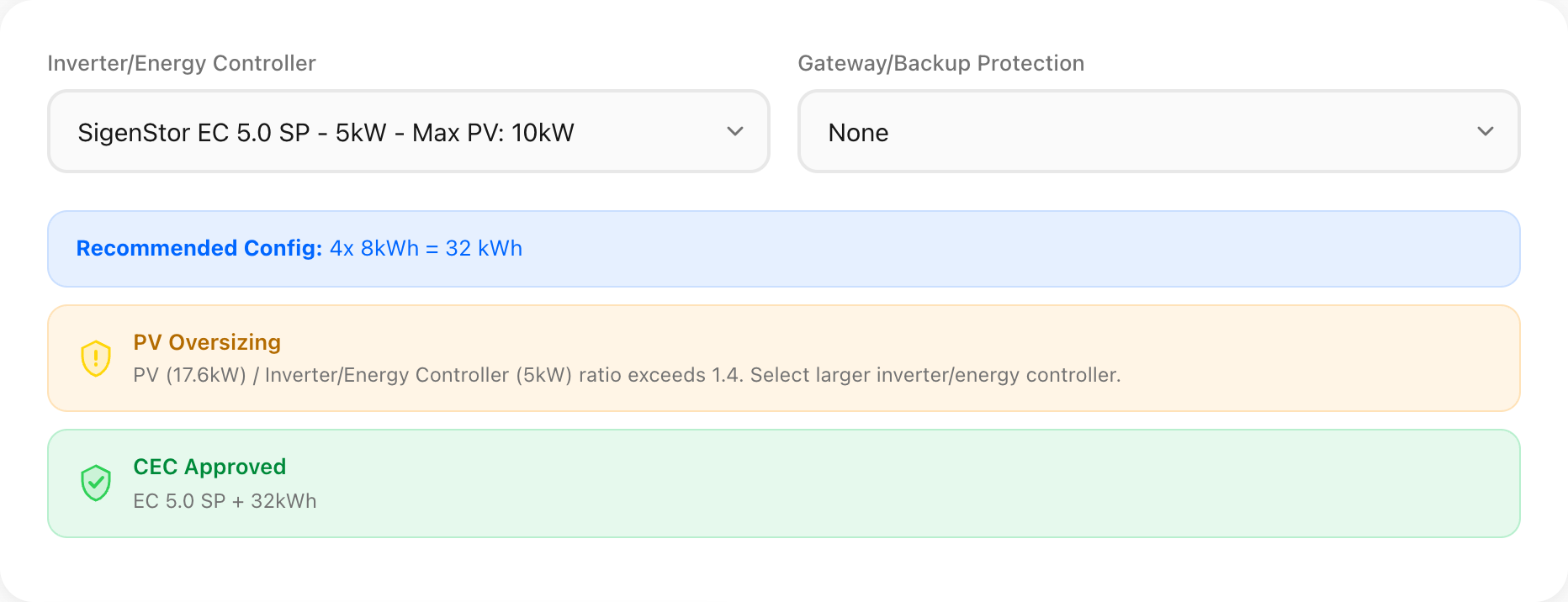
Inverter section showing auto-selected energy controller, battery config (4× 8kWh = 32 kWh), PV oversizing warning, and CEC Approved status.
| Field | Description |
|---|---|
| Inverter / Energy Controller | Auto-selected based on system size, phase, and manufacturer. You can override the selection from the dropdown. |
| Gateway / Backup Protection | Sigenergy only. Select gateway for backup protection from the dropdown. Hidden when SolaX is selected. |
| Backup Scope | Sigenergy only. Segmented toggle (Partial / Full Home) to the right of the gateway dropdown. Disabled until a gateway is selected. Selecting Partial sets backup circuits to 3 and auto-adds the "Partial board upgrade" addon. Full Home sets circuits to 5 and adds "Meter board upgrade". The addons swap automatically when you switch. |
| Backup Options | SolaX only. Appears when batteries are configured. Three-option segmented toggle: None (default), Partial, or Full Home. Partial sets backup circuits to 3 and adds "Partial board upgrade". Full Home sets circuits to 5, adds "Meter board upgrade", and auto-adds an EPS Box for X3-Hybrid inverters. X1-VAST and X3-Ultra have built-in whole-home backup so no EPS Box is needed. Selecting None removes all backup-related addons and circuits. |
Status Indicators
- Recommended Config (blue box) — Shows the battery module breakdown (e.g. "2× 5kWh modules").
- CEC Approved (green shield) — The selected inverter + panel combination is listed in the CEC approved combinations table.
- CEC Warning (orange shield) — The combination is not found in the CEC approved list. The system may still be installable but the rep should verify.
- Oversizing Warning — Panel array output exceeds the inverter's maximum input capacity.
- Min Modules Warning — Below the minimum number of panels required for this inverter.
- Phase Cap Warning — System size exceeds the maximum allowed for single-phase connections.
Accessories
This collapsible section manages additional items included in the quote.
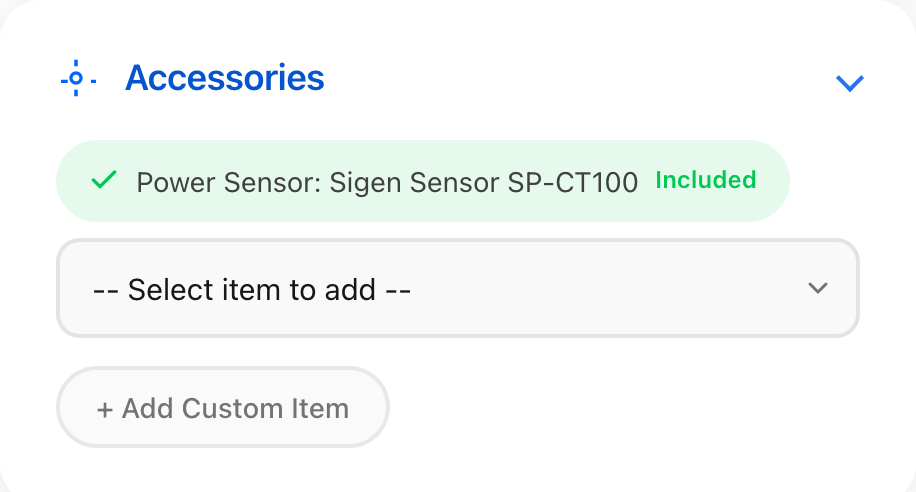
Accessories section showing an auto-included power sensor (green "Included" badge), the manual accessory dropdown, and the custom item button.
Auto-Included Accessories
Some accessories are automatically added based on the system configuration (e.g. mounting hardware, isolators). These appear as green pills with an "Auto" badge. Each has a checkbox to exclude it if not needed.
Manual Accessories
Use the accessories dropdown to add optional items. Select an accessory to add it to the quote. Added items appear as blue pills and can be removed with the × button.
EV Chargers
If available for the selected manufacturer, EV charger options appear as selectable pill buttons. Click to toggle on/off. The price is shown on each option.
Electrical Upgrades
This collapsible section appears when a contractor is selected and has a rate card configured. It shows installation-related cost items from the contractor's rate card.
Item Types
| Type | Behaviour |
|---|---|
| Auto items | Automatically included based on the system configuration. Always costed. |
| Standard items | Displayed as a label + price. Always included when visible. |
| Checkbox items | Displayed as a 3-column grid of checkboxes. Tick to include the cost. |
| Add-on items | Select from the dropdown to add. Remove with the × button. Per-panel items (e.g. System Removal) show a +/− stepper labelled "panels". Per-metre items (e.g. DC Run, AC Run) show a +/− stepper labelled "metres"; charges apply only beyond the threshold (e.g. DC Run charges after 20 m, AC Run after 8 m). |
Additional Fields
| Field | Description |
|---|---|
| Backup Circuits | Number of backup circuits including RCBO. Auto-set by the backup scope/options toggle (Partial = 3, Full Home = 5) but can be manually overridden. For SolaX, appears when Partial or Full Home is selected. For Sigenergy, appears when a gateway is selected. Each circuit adds to the installation cost. |
| Travel Distance | Driving distance in km from the contractor's address to the installation site. Auto-calculated via Google Distance Matrix API when an address is selected or the contractor changes. Can be manually overridden. Charges apply per km beyond the contractor's travel threshold (default 80 km). A yellow warning appears if the distance exceeds the contractor's service region. |
Custom Add-ons
Click Add Custom Item to add a free-text line item with a custom price. Use this for anything not covered by the standard rate card items.
Price Summary
The sidebar (right column on desktop, below on mobile) shows the live pricing breakdown.
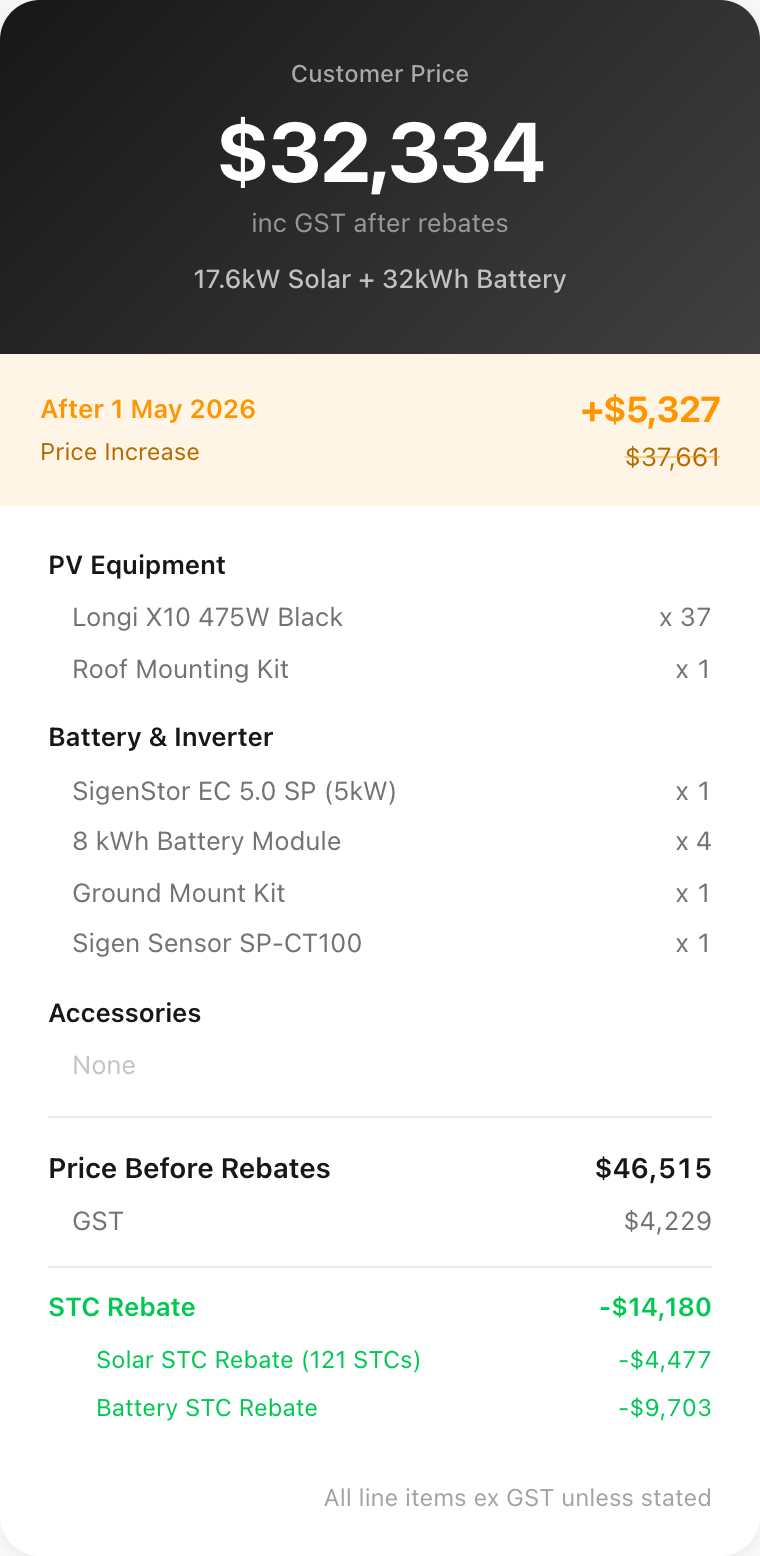
Price summary for a 17.6kW + 32kWh system: customer price, urgency banner, line-item breakdown, GST, and STC rebate.
| Section | Description |
|---|---|
| Customer Price | The headline price including GST and after all rebates. Updates in real time as you configure the quote. |
| System Summary | One-line description of the system (e.g. "6.6kW + 10kWh Sigenergy"). |
| Urgency Banner | Shows the price increase that will apply after the May 1 2026 STC changes. Automatically hidden after that date. See STC Rebates below. |
| PV Equipment | Line items for panels and solar-related hardware. |
| Battery & Inverter | Line items for battery modules, inverter, gateway, and related components. |
| Accessories | All selected accessories and custom add-ons. |
| Installation | Installation cost subtotal from the rate card (visible when a contractor is selected). |
| Price Before Rebates | Total ex-GST price before STC rebate is applied. |
| GST | 10% GST on the total. |
| STC Rebate | Government rebate based on system size, STC zone, deeming period, STC factor, and current STC price. Shown in green. See STC Rebates below. |
| Discount | Green highlighted banner below the price card. Enter a dollar amount to deduct from the final customer price (inc GST). The discount is saved with the quote and appears on the PDF. Set to 0 for no discount. |
| Battery Promotion | Checkbox below the Discount banner. Tick to deduct the current promotion amount (e.g. $2,160) from the final customer price. The amount is configured in admin → Business Parameters → Promotion Amount. The state and amount are saved with the quote and appear on the BOM and PDF. |
STC Rebates & May 2026 Transition
The quote tool calculates government STC (Small-scale Technology Certificate) rebates for both solar panels and batteries. The rebate scheme changes on May 1, 2026 and the system handles this automatically.
How STC Rebates Work
The rebate is calculated from three factors:
- System size — kW of solar or kWh of battery installed.
- STC zone — determined by postcode (zone 1 gets the most sun, zone 4 the least). The zone rating is a multiplier on the system size.
- Deeming period — the number of years of future generation the system is credited for.
- STC price — the market price per certificate, set in Business Parameters (currently $37).
The PV rebate formula is: floor(kW × zone_rating × deeming_years) × STC_price
PV STC Rebate
The PV deeming period is set by the admin in Business Parameters via a dropdown. It drops by 1 year each January under the legislated schedule (5 in 2026, 4 in 2027, ... 1 in 2030). The dropdown only allows selecting the current year or future values.
| Component | Calculation |
|---|---|
| PV deeming period | Set in Business Parameters (e.g. 5 for 2026) |
| PV rebate | floor(kW × zone_rating × deeming_period) × STC_price |
Battery STC Rebate
The battery rebate uses an STC factor set by the admin in Business Parameters. The formula is: floor(kWh × factor) × STC_price, capped at 50 kWh.
From May 1, 2026, the battery rebate applies a tiered structure based on battery size:
| Capacity Tier | STC Rate | Example (factor 6.8, $37/STC) |
|---|---|---|
| 0 – 14 kWh | factor × 100% | 14 kWh → 95 STCs → $3,515 |
| 14 – 28 kWh | factor × 60% | +14 kWh → 57 STCs → $2,109 |
| 28 – 50 kWh | factor × 15% | +22 kWh → 22 STCs → $814 |
The STC factor declines every 6 months from May 2026 (8.4 → 6.8 → 5.7 → ... → 2.1 in Jul 2030). The admin sets the Install Period in Business Parameters and the correct deeming period and factor are applied automatically.
Urgency Banner
The price summary shows an orange urgency banner comparing the current customer price to what it would be at the next scheduled STC step-down (either PV deeming reduction or battery factor reduction, whichever comes first). This helps sales reps encourage customers to act before the rebate reduction.
The banner automatically hides when no future step-down exists in the published schedule.
Workflows
Creating a New Quote
Saving a Quote
Click Save in the toolbar. The quote data is saved to the database and can be retrieved later via search. The customer name and postcode are required to save.
Searching & Loading Quotes
Click the search icon in the toolbar to open the search bar. Type a customer name, address, or phone number. Results appear below the toolbar. Click a result to load that quote into the form.
Printing a PDF Quote
Click Print in the toolbar to generate a formatted PDF document. The PDF includes the customer details, system specification, pricing breakdown, and contractor information.
Bill of Materials (BOM)
The BOM button in the toolbar opens a full-screen overlay listing every component with supplier codes and quantities. The full system price (inc GST, before rebates) is shown prominently in the header.
At the bottom, STC rebates, any discount, and the final Customer Price (inc GST) are displayed. No individual item prices are shown in the BOM — only quantities.
Use Print / Save PDF within the BOM view to export it.
When a quote is saved, the full BOM is snapshotted into the quote record. This preserves exact line items and costs at the time of saving, regardless of later price changes. The snapshot can be viewed from the admin Quotes view (see Admin — Quotes).
Admin — Contractors
The admin portal opens to the Contractors mode by default. Access it by clicking Admin in the quote tool toolbar, or navigate to admin.html directly. You must log in with a valid account.
The admin login screen. Enter your email and password to access the admin portal.
Contractor List
The left panel shows all contractors. Use the search input at the top to filter by name. Toggle between Active and All to show or hide deactivated contractors.
| Element | Description |
|---|---|
| Search | Filter the contractor list by name. Matches are highlighted in real time. |
| Active / All | Filter buttons. "Active" (default) hides deactivated contractors. |
| Status badge | Green for active contractors, grey for deactivated. |
| Compliance dots | Small coloured indicators showing compliance status (insurance, licence expiry, etc.). |
Details Tab
Click a contractor to view their details in the right panel. The Details tab shows contact information, licence, and compliance fields.
| Field | Description |
|---|---|
| Company Name | The contractor's registered business name. |
| Contact Name | Primary contact person. |
| Contact email address. | |
| Phone | Contact phone number. |
| Address | Business address. Google Places autocomplete enabled — used as the origin for travel distance calculations. |
| ABN | Australian Business Number. |
| Licence Number | Electrical contractor licence number. |
| Licence Expiry | Licence expiry date. Generates a compliance warning when approaching expiry. |
| Insurance Expiry | Public liability insurance expiry date. |
| CEC Accreditation | Clean Energy Council accreditation number. |
| Service Region (km) | Maximum service distance in km. If the install address exceeds this distance, a yellow warning appears in the quote tool. |
| Travel Threshold (km) | Free travel distance in km (default 80). Travel charges only apply for km beyond this threshold. |
| Active | Toggle the contractor's active status. Deactivated contractors are hidden from the quote tool dropdown. |
Click Save to persist changes. Use Deactivate to soft-delete the contractor (they remain in the database but are hidden).
Rate Card Tab
Switch to the Rate Card tab to manage the contractor's installation pricing. The rate card defines all the line items that appear in the quote tool's Electrical Upgrades section.
Category Groups
Items are organised into categories (e.g. "Electrical", "Structural", "Travel"). Each category is a collapsible group with its own header.
Managing Items
- Inline editing — Click a price value to edit it directly in the list.
- Add item — Click the + button in a category header to add a new rate card item.
- Edit item — Click an item row to open the edit modal with all fields.
- Delete item — Use the delete button in the edit modal to remove an item.
Item Edit Modal Fields
| Field | Description |
|---|---|
| Name | Display name of the rate card item. |
| Category | Which group this item belongs to. |
| Type | How the item behaves: auto (always included), standard (displayed with price), checkbox (optional tick), or addon (selectable from dropdown). |
| Price | Cost in dollars (ex GST). |
| Condition | Optional condition expression that controls when this item is visible (e.g. only for battery systems, only for double storey). |
Reset to Defaults
Use the reset button to restore the contractor's rate card to the system default values. This overwrites all custom pricing.
Clone Contractor
Click Clone in the toolbar to duplicate an existing contractor. The clone modal lets you:
- Select the source contractor to copy from.
- Enter a new company name for the clone.
- Choose whether to copy the rate card.
The cloned contractor is created as a new active entry with all details and (optionally) rate card items copied.
Admin — Pricing
Switch to Pricing mode using the mode switcher in the admin toolbar. This mode manages all product pricing data that feeds into the quote tool.
Product Tables
Use the Category and Manufacturer filter dropdowns to narrow the product list. Products are displayed in a table with columns specific to each product type.
| Category | Key Columns |
|---|---|
| Panels | Model, wattage, supplier code, price, active |
| Inverters | Model, capacity (kW), phase, type, supplier code, price, active |
| Battery Modules | Model, capacity (kWh), type, supplier code, price, active |
| Gateways | Model, type, supplier code, price, active |
| EV Chargers | Model, power (kW), supplier code, price, active |
| Accessories | Name, type, supplier code, price, active |
| Add-ons | Name, description, price, active |
| Battery Mounting | Type, model, price, active |
| Mounting Kits | Roof type, model, per-panel price, active |
| Mounting Parts | Part name, length, price, active |
Click the Active toggle on any row to enable or disable a product. Disabled products are hidden from the quote tool but remain in the database.
Click a price cell to edit it inline.
Product Modal
Click New in the toolbar or click an existing product row to open the product modal. The modal shows common fields plus type-specific fields depending on the product category.
Common Fields
| Field | Description |
|---|---|
| Name / Model | Product display name. |
| Manufacturer | Sigenergy or SolaX. |
| Supplier Code | Unique code from the supplier, used for BOM and bulk import matching. |
| Price | Unit cost in dollars (ex GST). |
| Active | Whether the product is available in the quote tool. |
Type-Specific Fields
Each product type has additional fields (e.g. wattage for panels, capacity for batteries, phase for inverters). These are displayed dynamically in the modal based on the selected category.
Bulk Import
Use the bulk import feature to update prices from a CSV file.
supplier_code and price at minimum.supplier_code across all product tables. Unmatched rows are shown but skipped during import.
Business Parameters
The Business Params section (accessible from the category filter) controls global pricing variables used in quote calculations.
| Parameter | Description |
|---|---|
| GP Margin | Gross profit margin percentage applied to equipment costs. |
| Sales Commission | Sales rep commission percentage. |
| STC Price | Current market price per STC certificate (used in rebate calculation). |
| Install Period | Select the period when systems will be installed (e.g. "Jan-Apr 2026"). The PV deeming period and battery STC factor are automatically set from the legislated schedule. Past periods are disabled. |
| PV Deeming Period | Read-only. Automatically derived from the install period. Shows the number of deeming years for PV STC calculation. |
| Battery STC Factor | Read-only. Automatically derived from the install period. The factor used in battery STC rebate calculation. |
| Install per kW (PV) | Base installation cost per kW of solar capacity. |
| Install per Stack | Base installation cost per battery stack. |
| Fixed Overhead ($) | Hidden flat dollar amount added to the final customer price (inc GST). Not visible in quotes, BOM, or PDF line items. GP margin and commission do not compound on it. |
| Zero Bill Base Premium ($) | Minimum premium added when quote type is "Zero Bill". The actual premium is the greater of this base amount or the percentage-based amount below. |
| Zero Bill Premium (%) | Percentage of the price before rebates (inc GST) used to calculate the Zero Bill premium. Compared against the base amount; whichever is higher is applied. |
Admin — Quotes
Switch to Quotes mode using the mode switcher in the admin toolbar. This view shows all saved quotes in a table with financial breakdown columns.
Quotes Table
Each row shows the quote date, customer name, sales rep, system size, price (inc GST), customer price, COG, installation cost, STC rebates, commission, discount, net GP, and net GP percentage.
BOM Viewer
Quotes saved with the BOM snapshot feature have a BOM button in the last column. Clicking it opens a fully costed Bill of Materials overlay showing:
- Customer header — name, address, contact details, and quote date.
- Itemised line items — grouped by category (PV Equipment & Mounting, Battery Components, Accessories, Installation). Each line shows description, SKU/supplier code, quantity, unit cost (ex GST), and line total (ex GST), with category subtotals.
- Grand Total COG — sum of all categories (ex GST).
- Pricing summary — Price Before Rebates (inc GST), PV STC Rebate, Battery STC Rebate, Discount, Zero Bill Premium, Fixed Overhead, and Customer Price (inc GST).
Click Print to print the BOM. The print view hides all other admin UI for a clean output.
Admin — Users
Switch to Users mode using the mode switcher in the admin toolbar. This mode manages Supabase Auth accounts that can access the admin portal.
User List
The user list table shows all registered admin accounts with their email address and creation date.
Adding a User
Deleting a User
Click the delete button next to a user to remove their account. You cannot delete your own account (the button is disabled for the currently logged-in user).